
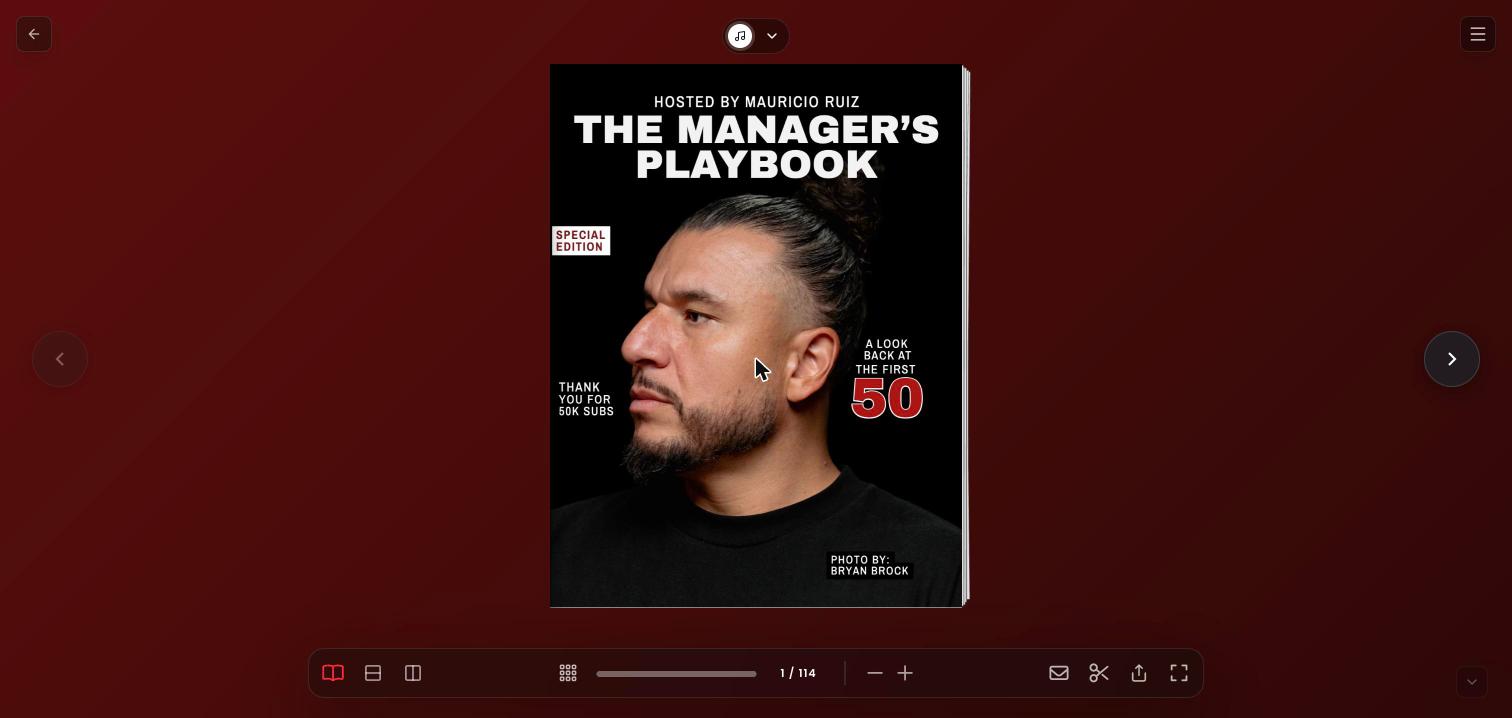
The Rip Page button, with the scissors icon, in the viewer toolbar
Before you start
- You need a Covver account. You can open the rip window without one, but saving the page asks you to sign in. See Create an account and sign in.
- The creator must allow it. The Rip Page button appears only on magazines whose creator left page rip turned on.
Rip a page
1
Go to the page
Open the magazine and turn to the page you want.
2
Select Rip Page
On a computer, select the scissors button (Rip Page) in the toolbar. On a phone, select More, then Rip page. If you were in fullscreen, the viewer leaves it.
3
Pick the page
The Rip a Page window opens with the note “This page will be available for reading and building”.
- When you are looking at two facing pages, it shows both. Select Rip Left or Rip Right.
- When you are looking at a single page, select Rip Page.
4
Done
A confirmation tells you the rip is available in your rip folder.
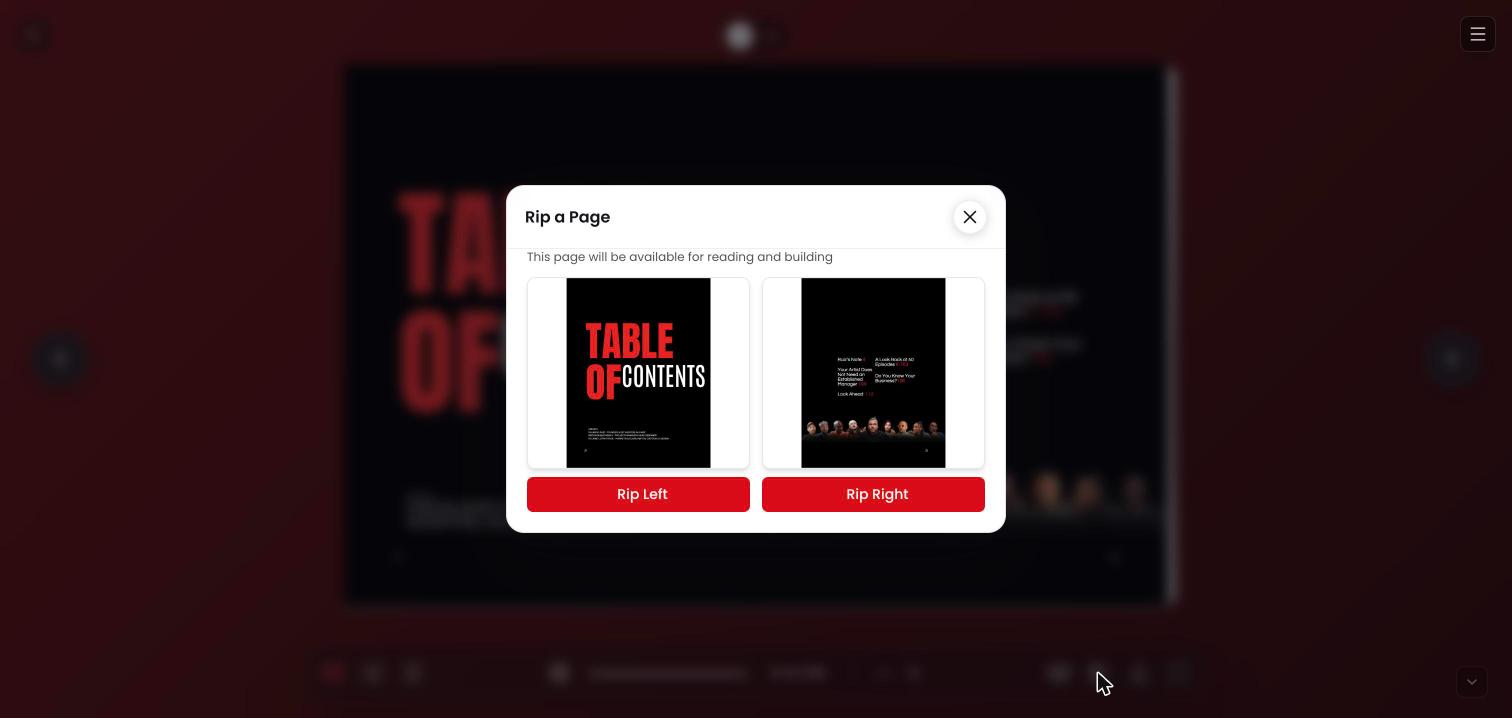
Rip a Page with two facing pages
Find your rips
Open the menu on covver.com, expand your account and select Rips. The page lists every rip you saved, with a count such as “2 rips saved”.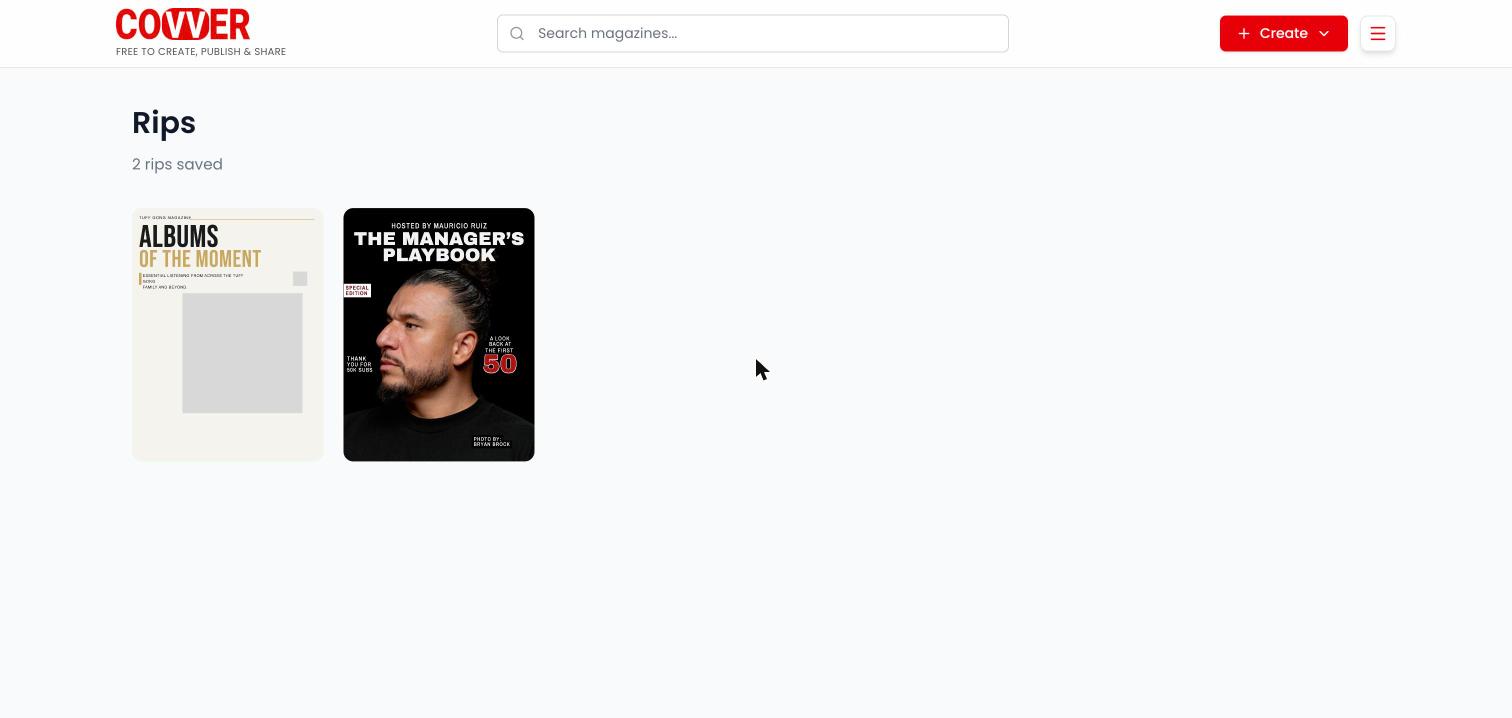
Your Rips page
A rip marked Private comes from a creator whose account is private.
Use a rip in your magazine
1
Open the Rips panel
In the Builder, select Rips in the left rail. The panel lists the same rips as your account.
2
Find the rip
Scroll the grid or type in Search rips…. Each card shows the name of the magazine it came from.
3
Place it
Select a card to add it to the current page, or drag it onto the canvas. The rip fills the page.
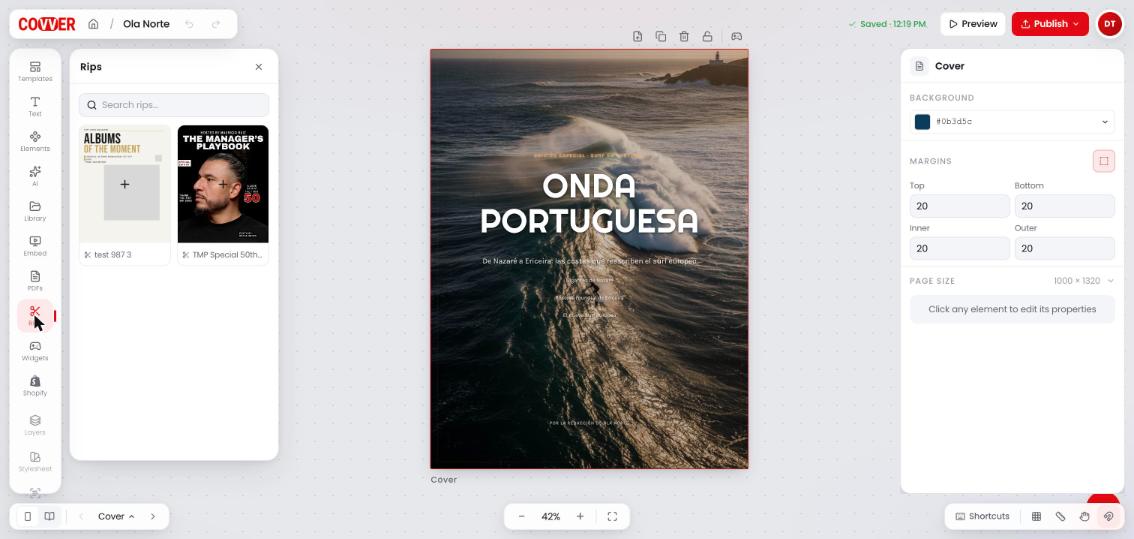
The Rips panel in the Builder
For creators: allow or block rips
Page rip is a setting of each magazine.1
Open the magazine's details
In the Builder, open the magazine’s details page.
2
Find Reading experience
Scroll to the Reading experience card.
3
Set Enable page rip
Turn Enable page rip (“Allow readers to save individual pages”) on or off.
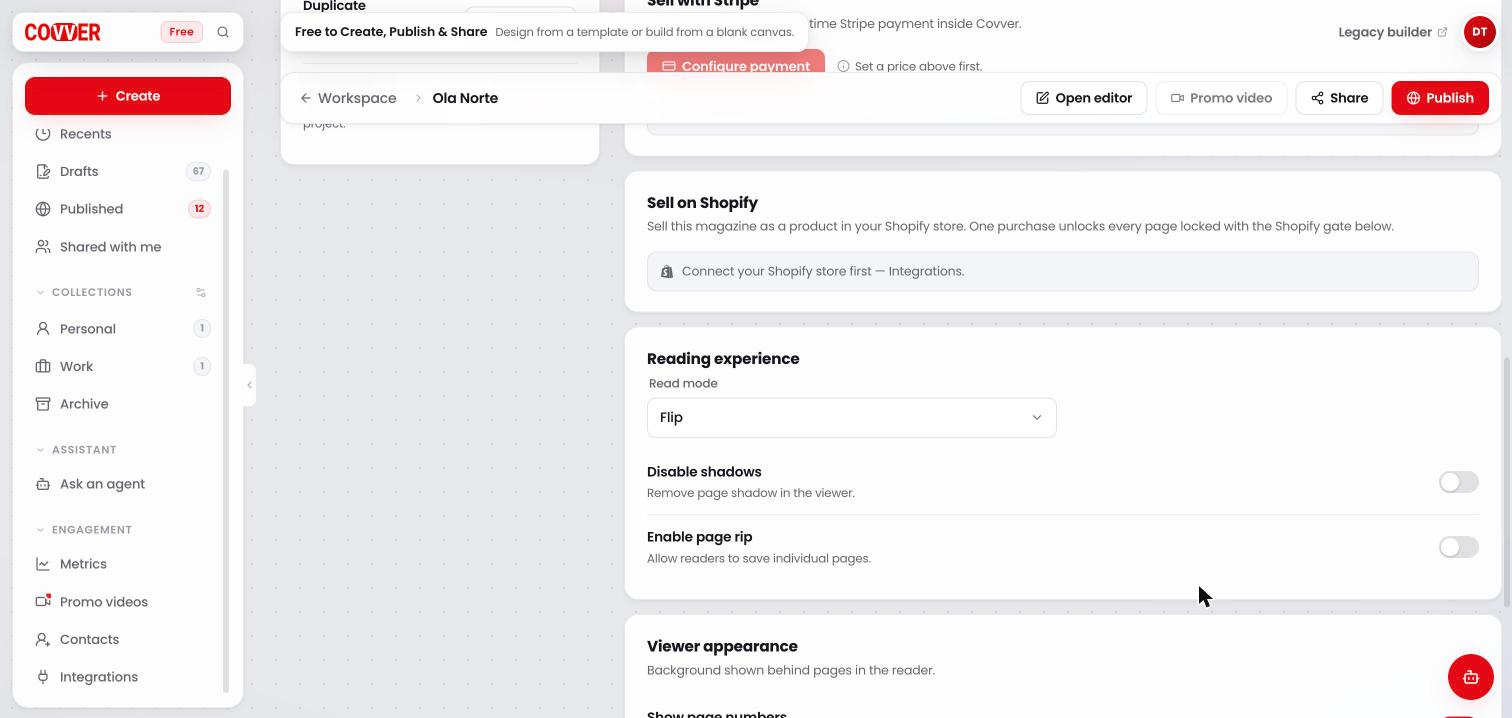
Enable page rip in the Reading experience card
New magazines start with page rip turned on. Turn it off if you do not want readers to save your pages.
Common questions
I selected Rip Left and was asked to log in
I selected Rip Left and was asked to log in
Saving a rip needs a Covver account. Sign in, return to the magazine and rip the page again.
Does ripping a page change the original magazine?
Does ripping a page change the original magazine?
No. A rip is a copy in your account. The original magazine and its creator are not affected.
Can I edit a rip?
Can I edit a rip?
A rip is placed as a full-page picture of the original page. You can move, resize and layer it like an image, and add your own elements around it.