

A creator's stand as visitors see it
What visitors see
Tabs
The stand opens on ALL when you have magazines. Selecting a tab does not reload the page.
Which magazines appear
Your published magazines that are set to show to everyone appear on your stand. Drafts never appear. See Publish for visibility options.Subscribe to a creator
On any stand that is not yours, open the overview tab (the creator’s name) and select + Subscribe. You are asked to sign in first if you are not. The creators you follow are listed in Subscriptions in your account menu. See Your library. You can also subscribe from below any magazine with Subscribe.Private stands
When a creator sets their account to Private (see Your profile):- Visitors see the stand’s header and overview tab, but not the magazine grid.
- The overview shows Request access instead of + Subscribe. After a signed-in reader requests access, the button reads Request pending until the creator approves.
- The creator still sees their full stand when signed in.
Customize your stand
When you are signed in and open your own stand, two extra controls appear:- A palette button at the bottom right, Customize Stand.
- Drag handles on magazine cards, when you use a custom order. Their tooltip reads Drag to reorder.

Your own stand, with the Customize Stand button at the bottom right
1
Open Customize Stand
Select the palette button. The Customize Stand panel opens on the right.
2
Change what you want
Change the banner, order, colors or background. Color changes show on the stand behind the panel as you make them.
3
Save
Select Save Changes. Close the panel with the x to leave without saving.
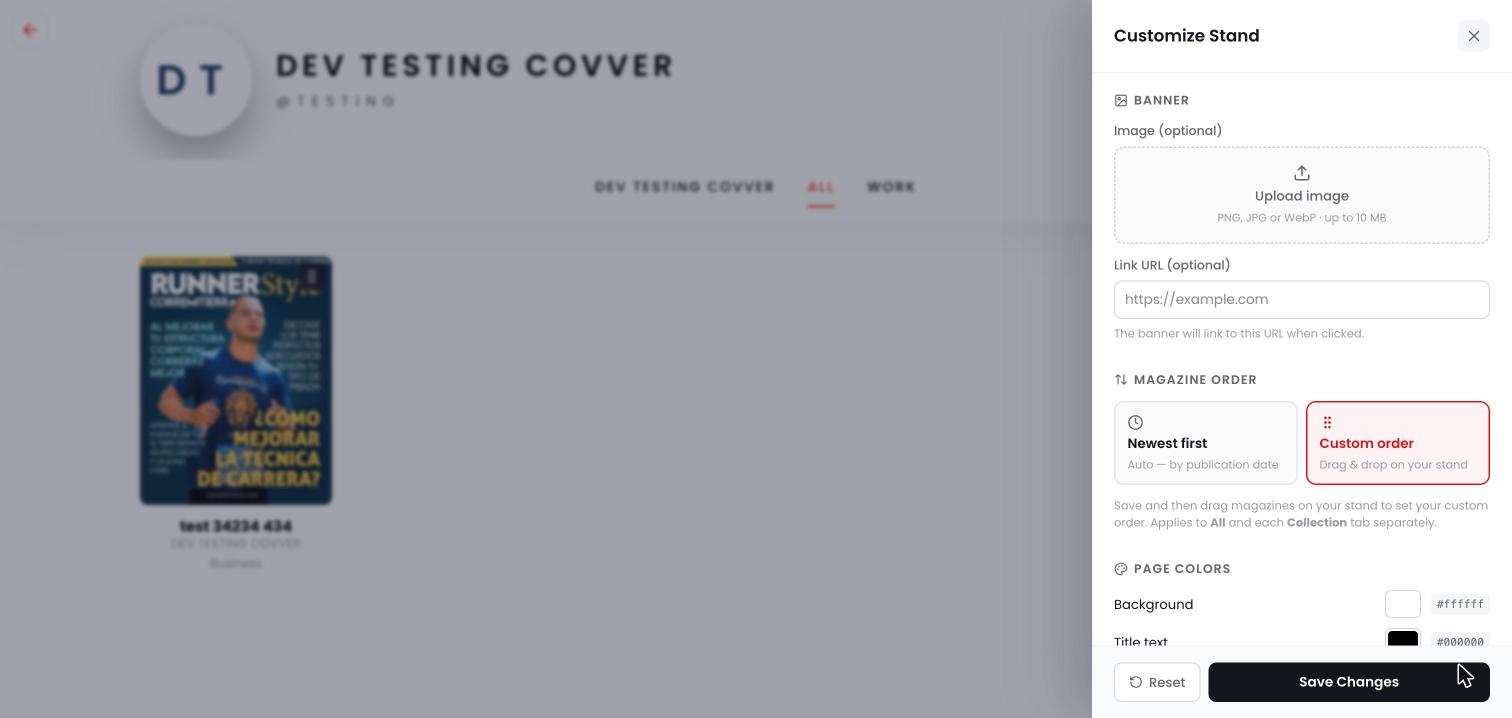
The Customize Stand panel
Every option
Each color has a color picker and its hex code. At the bottom of the panel:
- Reset puts every option back to the default look in the panel. Select Save Changes to apply it, or close the panel to keep your current look.
- Save Changes saves and applies your changes.
Set a custom order
1
Choose Custom order
In Customize Stand, under Magazine order, select Custom order, then Save Changes.
2
Open a tab
Select ALL or a collection tab.
3
Drag
Drag a magazine by its handle to a new position. The new order saves when you drop it.
The order applies to ALL and to each collection tab separately, so you can arrange every tab differently.
Embed your stand
You can show your stand inside another website. Use this address in an iframe:Related
- Your profile: the name, bio, avatar and links on your stand.
- Collections: group magazines into stand tabs.
- Discover Covver