
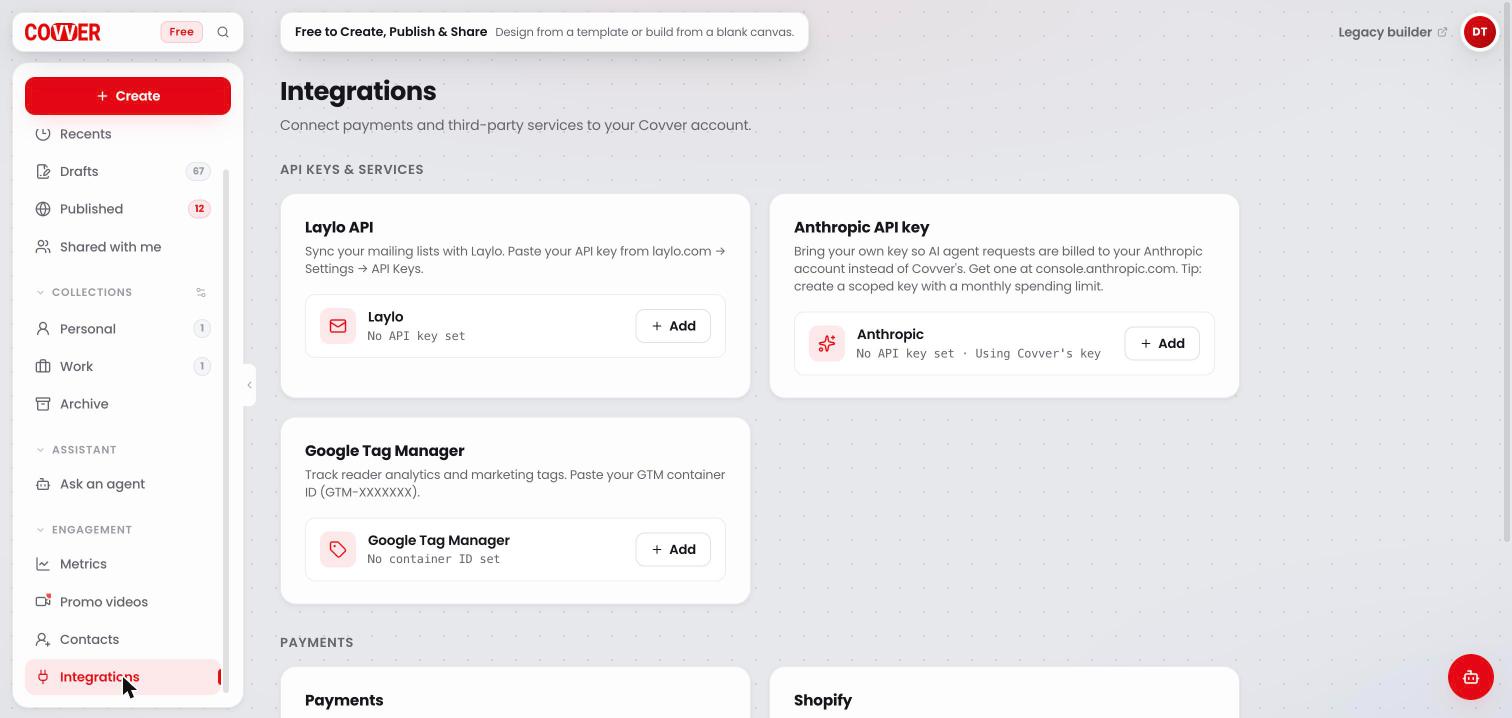
The Integrations page
At a glance
A Saved chip appears at the top right each time a change is stored.
Payments
Stripe
The Payments card connects a Stripe account so readers can pay for your locked pages. Covver keeps a 10% platform fee on each sale; the rest goes to your Stripe account.1
Connect
Click Connect Stripe. You are taken to Stripe to sign in or create an account and complete its onboarding.
2
Come back to Covver
When you finish, Stripe sends you back to Covver. The card shows Connected.
3
Set up a magazine
On a magazine’s project page, set a price and click Configure payment. Then add the Paywall lock to the pages you want to sell.
Shopify
The Shopify card connects one Shopify store to your Covver account.1
Start the connection
Click Install from Shopify and pick your store on Shopify.If that button is disabled (it shows Available once Covver is live on the Shopify App Store), click I know my store URL instead, type your Store domain (for example
my-store.myshopify.com) and click Authorize.2
Approve on Shopify
Shopify asks you to approve the connection. When you come back, the card shows your store and Connected.
Shopify may not be available on every account yet. If you don’t see the Shopify card, it isn’t available for yours.
API keys and services
Laylo
Laylo is a fan-messaging platform. When you add your Laylo API key, every reader who leaves an email or phone number through your mailing list form or an email or phone page lock is also added to your Laylo fans. They still appear in your Covver Contacts.1
Get your key
In Laylo, go to Settings, then API Keys, and copy your key.
2
Add it to Covver
In the Laylo API card, click Add, paste the key and click Save. Use the eye icon to show or hide what you pasted.
Anthropic API key
By default, the AI features in the Builder run on Covver’s own key, and the card shows No API key set · Using Covver’s key. If you prefer, you can bring your own Anthropic key so those requests are billed to your Anthropic account instead.1
Create a key
Create an API key in the Anthropic console at
console.anthropic.com. A key with a monthly spending limit is a good idea.2
Add it to Covver
In the Anthropic API key card, click Add, paste the key and click Save.
Common questions
Do I need Stripe to collect emails or phone numbers?
Do I need Stripe to collect emails or phone numbers?
No. Email gates, phone gates and other lead tools work without any integration. Stripe is only needed for the Paywall lock.
Can I connect more than one Stripe account or Shopify store?
Can I connect more than one Stripe account or Shopify store?
No. Each Covver account connects one Stripe account and one Shopify store. To switch, disconnect and connect the other one.
I connected Stripe but Configure payment is still disabled
I connected Stripe but Configure payment is still disabled
The button needs a price. On the project page, turn on Price and enter an amount first.
Related
Sell paid pages
Charge readers with Stripe.
Shopify
Sell through your Shopify store.
Collect leads
Gather reader emails and phone numbers.
Project page
Price, selling options and more for one magazine.