
builder.covver.com as soon as you sign in. You need a Covver account to use it. If you are working as a guest, you go straight to the editor instead. See Guest mode.
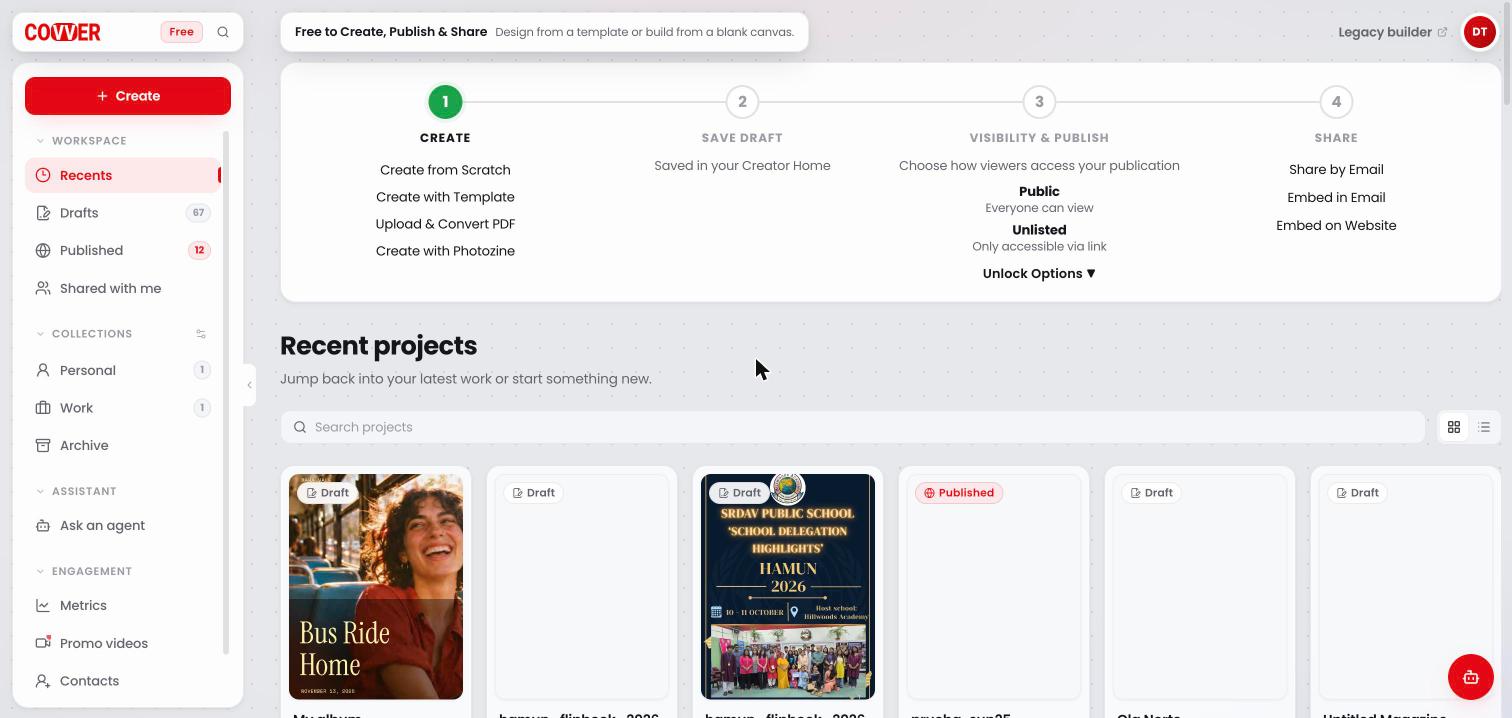
The Builder home, with the sidebar on the left and your recent projects on the right
The top bar
Profile menu
Click your avatar at the top right to open it.The sidebar
The sidebar is split into groups. Click a group name (Workspace, Collections, Engagement) to fold or unfold it. Use the arrow on the right edge of the sidebar to collapse it to icons and get more room. Click it again to expand it.If you have more than five collections, the sidebar shows the first five and a Show more button for the rest.
Create a magazine
Click Create at the top of the sidebar and pick how you want to start.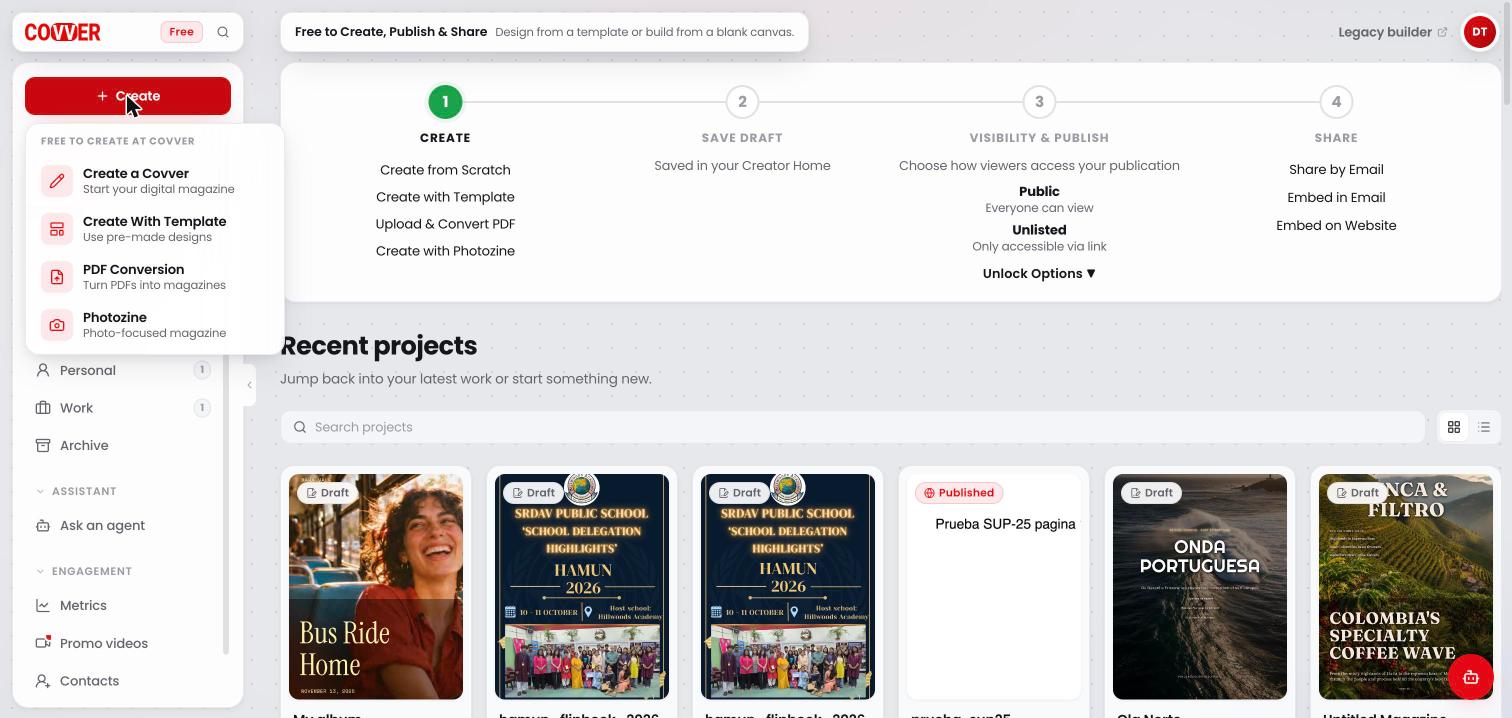
The Create menu
New magazines are saved as drafts in your home as you work. Nothing is public until you publish.
The getting-started guide
Recents, Drafts and Published show a four-step guide at the top of the page. The step that matches the page you are on is highlighted.Find a magazine
Each list (Recents, Drafts, Published or a collection) has the same tools:- Search projects: type part of a title to filter the list.
- Grid view and List view: the two buttons to the right of the search field.
Project cards
In grid view, each magazine is a card with:- Its cover.
- A Draft or Published badge.
- The collection it belongs to, if any.
- The title, how long ago it was edited and its number of pages.
Card options
Hover a card and click Options (the three dots) at its top right.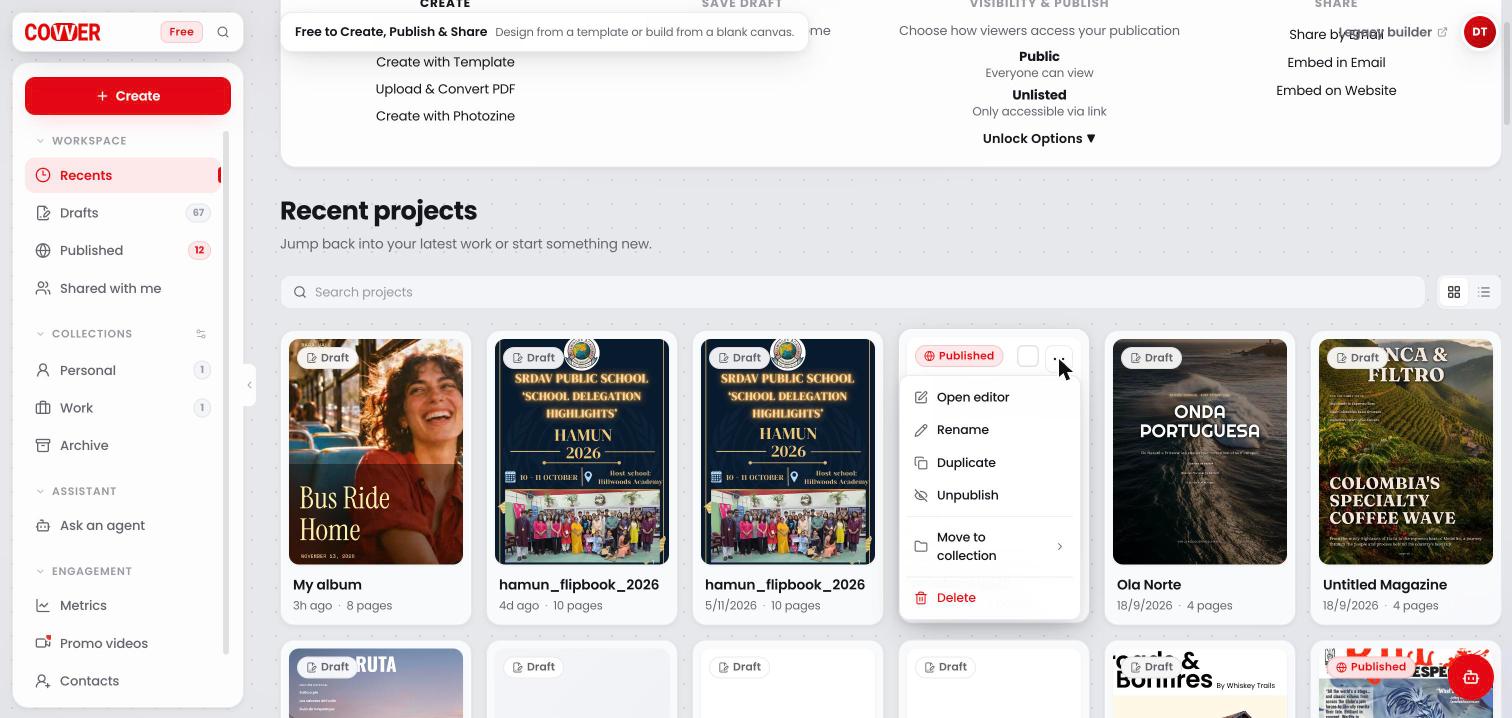
The options menu of a published magazine
List view
List view shows one row per magazine with its Title, Status, Updated time and number of Pages. Each row has quick buttons on the right to Duplicate, Publish or Unpublish, and Delete. Click a row to open its project page.Work with several magazines at once
1
Select magazines
Hover a card and click the Select box at its top right. In list view, use the box at the start of each row, or the box in the header to select every row.
2
Use the selection bar
A bar appears above the list with the number of magazines selected. Use Select all to add every magazine in the current list, or Clear all to start over.
3
Act on the selection
- Hide unpublishes every selected magazine that is live. Drafts are not affected.
- Delete removes every selected magazine after you confirm. This cannot be undone.
Magazines from the previous builder
Magazines you made with the earlier Covver builder appear in your home with a Legacy, Legacy PDF or Legacy Photozine label. They are read-only here. When you try to edit one, Covver explains your options:- View only opens the published magazine.
- For a legacy PDF, Re-import PDF starts a new PDF conversion.
- For other legacy magazines, Open in classic builder opens it in the previous builder. On the project page you can also select Convert to New Builder to make an editable copy. See Project page.
On your phone
On a small screen, the sidebar becomes a menu. Tap the menu icon at the top left to open it, and the + at the top right to start a new magazine. See The Builder on mobile.Common questions
Where is the magazine I was just working on?
Where is the magazine I was just working on?
Open Recents. Magazines are sorted by the last time you edited them, so it is at the top. You can also type part of its title in Search projects.
Does unpublishing delete my magazine?
Does unpublishing delete my magazine?
No. An unpublished magazine goes back to Drafts with all its pages. Readers can no longer open its link until you publish it again.
Can I recover a deleted magazine?
Can I recover a deleted magazine?
No. Deleting a magazine is permanent. If you only want it out of sight, move it to the Archive collection or unpublish it instead.
Related
Project page
Everything you can manage for one magazine.
Tour of the Builder
Find your way around the editor.
Collections
Group your magazines into folders.
Publish
Put a magazine online.