
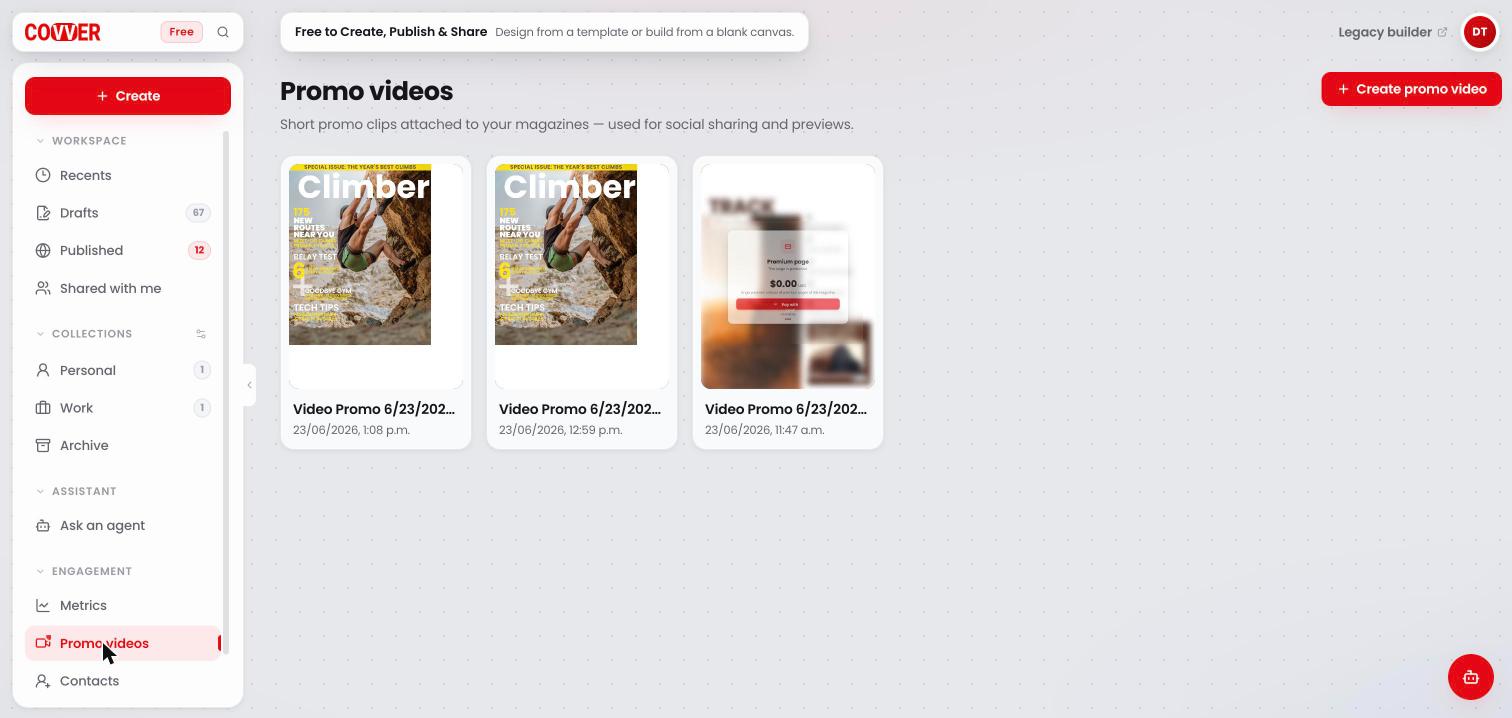
The Promo videos page with three generated clips
Before you start
- The magazine must be published. Promo videos are made from the published pages.
- The magazine should use the standard page size, 1000 × 1320 px. For magazines with another page size, Covver shows Available for 1000 × 1320 magazines instead of the page picker.
Create a promo video
You can start from the Promo videos page or from the magazine’s project page.- From Promo videos
- From the project page
1
Open Promo videos
In your Builder home, open Engagement in the sidebar and select Promo videos.
2
Start a new clip
Click Create promo video.
3
Choose a magazine
In Select a magazine, click the published magazine you want to promote.
1
Choose the clip length
Next to Pages in clip, pick how many pages the clip shows: 4, 6, 8 or 12.
2
Select the pages
Click the pages you want. A counter shows how many you have selected. Once you reach the number you chose, the other pages are disabled. Click a selected page to remove it. The clip shows the pages in the same order as in your magazine.
3
Generate
When the footer says Ready to generate, click Generate video.
Watch and manage your clips
Each clip appears on the Promo videos page as a card with the magazine’s cover, the title Video Promo with its date, and the time it was created.Common questions
The magazine I want is not in the list
The magazine I want is not in the list
Only published magazines can be turned into promo videos. Publish it first, then try again.
Why can't I select more pages?
Why can't I select more pages?
You have reached the number set in Pages in clip. Pick a higher number, or remove a page before adding another.
Related
Share your magazine
Links, QR codes and embeds.
Project page
All the settings for one magazine.