
- Layers lists every element on the current page, from the top of the stack to the bottom. Use it to reorder, rename, hide or lock elements, especially ones that are hard to click on the canvas.
- Stylesheet is a style guide that Covver builds from your magazine on its own. Use it to reuse the same colors, fonts and text styles everywhere and keep the design consistent.
Layers
Click Layers at the bottom of the left rail. Click it again, or the close button in the panel, to hide it.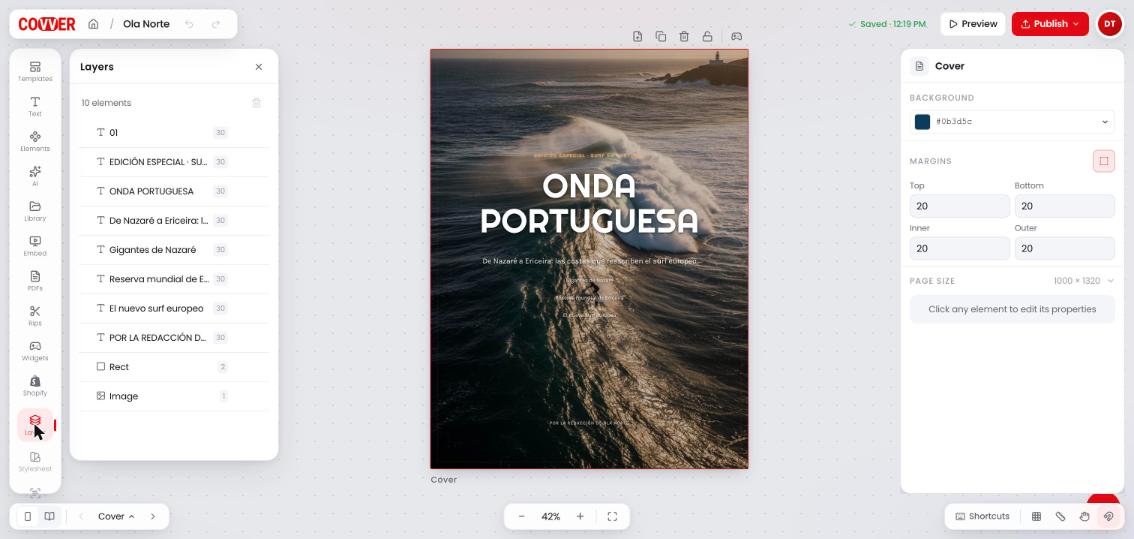
The Layers panel lists every element on the current page
The eye and lock buttons appear when you point at a row or select it. The list is ordered from the front of the page (top) to the back (bottom), and it follows the page you are on.
What you can do in Layers
All of these can be undone with undo.
Other ways to change the stacking order
You don’t need the panel open to reorder elements:- Press
]to bring the selected element forward, or[to send it backward. - Right-click an element and open Layer.
- Use Forward and Backward under Arrange in the right sidebar.
Stylesheet
Click Stylesheet at the bottom of the left rail. The panel reads every page of your magazine and shows what it uses. You don’t need to set anything up: it updates as you design.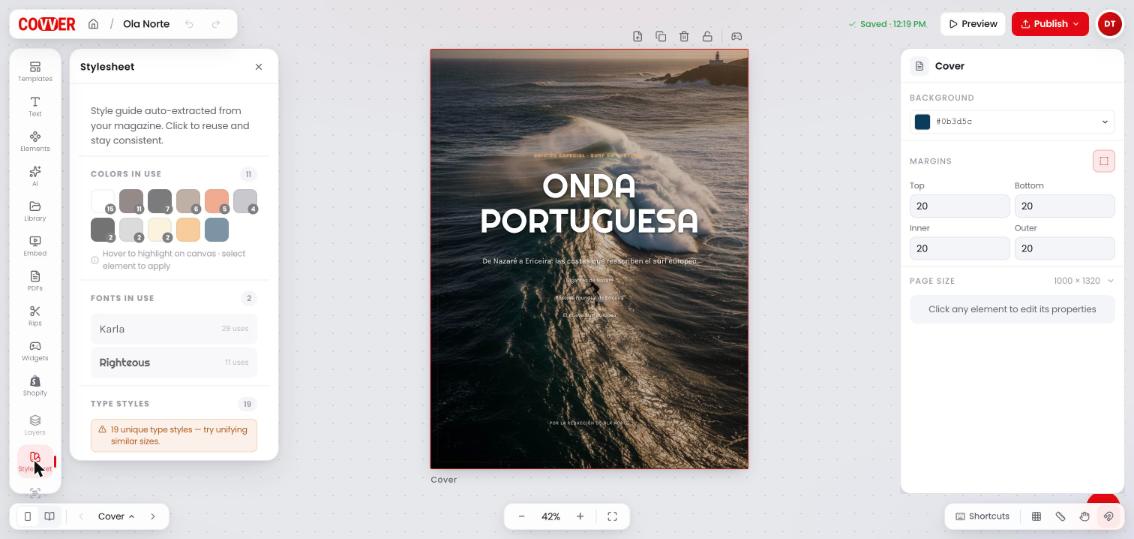
The Stylesheet panel builds a style guide from your magazine
Colors in use
Every color used by text, shape fills, shape outlines and page backgrounds, sorted from most to least used. The small number on a swatch is how many times the color appears.- Point at a swatch to highlight on the canvas the elements that use that color.
- Select a text or a shape, then click a swatch to apply the color. On text it changes the text color, and on a shape it changes the fill. Images have no color to change.
- Save a color to your brand palette with the bookmark button on the swatch.
Brand palette
This section appears once you save at least one color. Your brand palette belongs to your account, so the colors you save are there in every magazine you open. Click a swatch to apply it to the selected text or shape, and use the remove button on a swatch to take it out of the palette.Fonts in use
Every font family used in your magazine, with how many text elements use it. Select a text element and click a font to apply it. If the magazine uses more than three families, the panel points out that magazines usually read better with one or two. See Fonts.Type styles
A type style is a combination of font, size, weight, line height and letter spacing. Each card shows a preview, the font, the size, the weight and how many times the style is used.- With a text element selected, click a style to apply all of its settings at once.
- With nothing selected, click a style to add a new text box that uses it.
Page backgrounds
The background colors of your pages, with how many pages use each one. Click a swatch to apply that background to the page you are on.Related
Elements
Select, move, layer and align anything on the page.
Text
Add and format text.
Fonts
Browse the font catalog.
Pages
Page backgrounds, margins and size.