
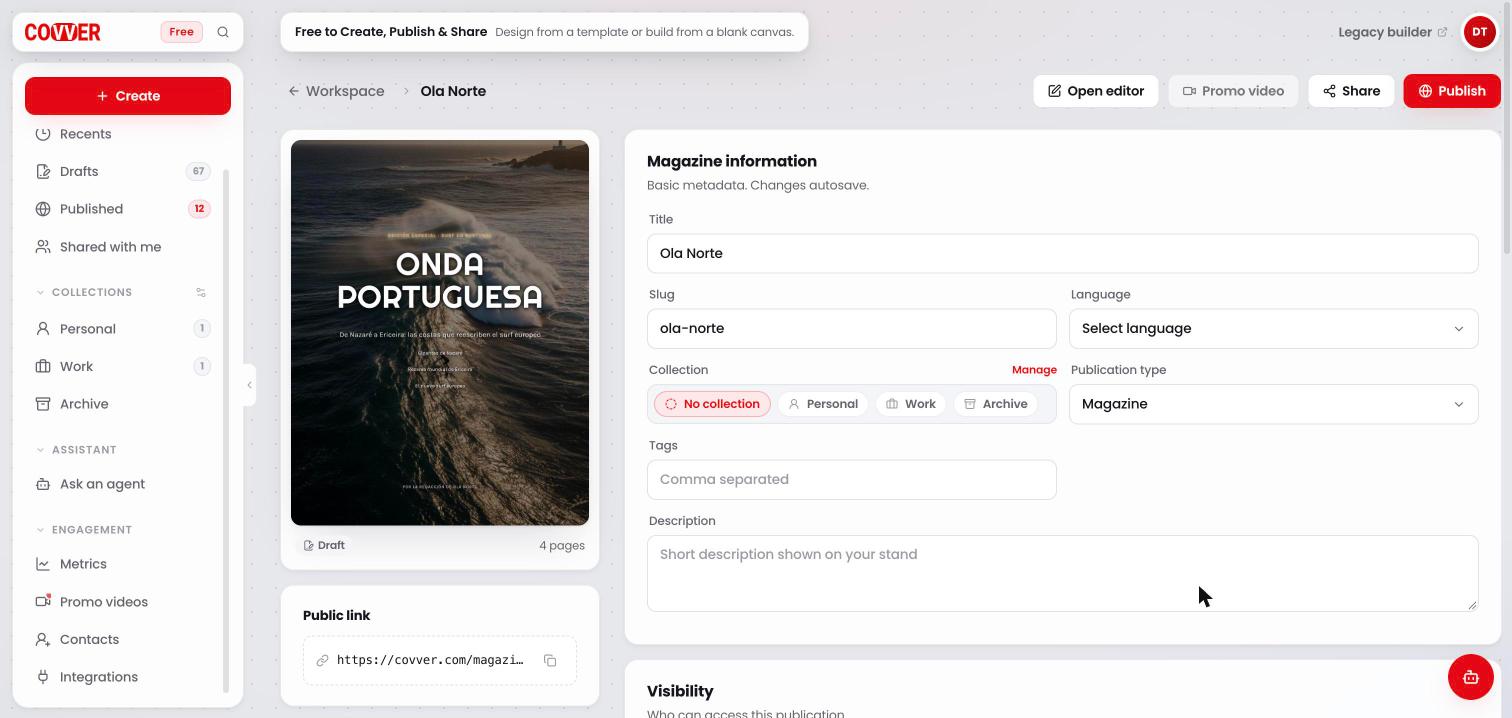
The top of a project page: the header actions, the cover and Magazine information
Header
The breadcrumb at the top left shows Workspace and the magazine’s title. Click Workspace to go back to your home. The header stays at the top while you scroll.Left column
Cover and status
The cover shown here is the first page of your magazine, as it looked the last time you published. Below it you see a Draft or Published badge and the number of pages.Public link
The address readers use to open your magazine. Click the copy icon to copy it. The link works for readers only while the magazine is published.LinkHuub Player
A floating music player that sits on top of your magazine in the viewer. It can play a Spotify embed, show buttons to streaming platforms, or play audio tracks you upload. The card shows Not configured until you set it up. Click Configure player (or Edit player config once it is set up) to open the player settings, where you can:- Turn the player on with Enable player.
- Add a Spotify URL.
- Upload tracks or pick them from your library for the Audio playlist.
- Add Streaming platforms links, each shown as a button in the player.
- Choose Start on page, Autoplay and Auto-open when magazine opens.
Danger zone
Magazine information
Basic details about your magazine. Changes save as you type.Visibility
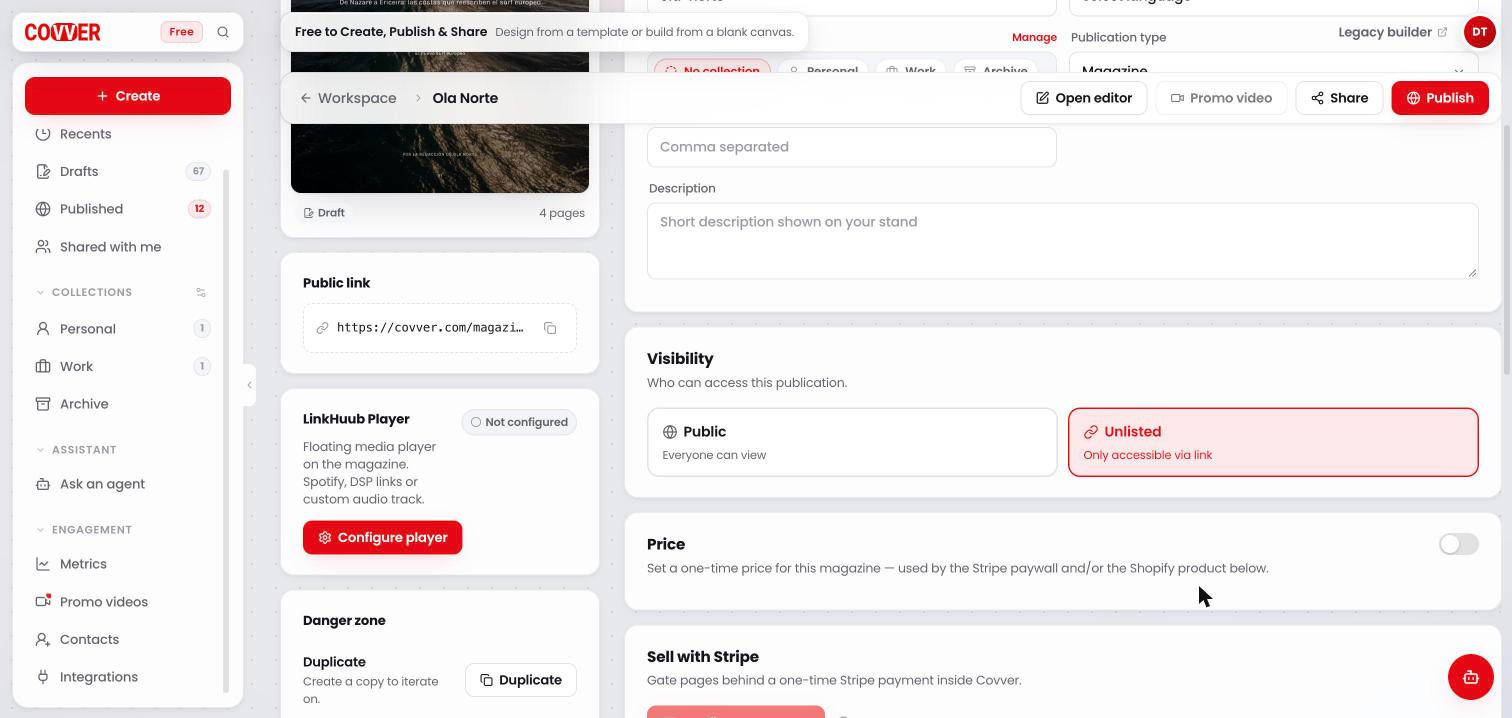
Visibility, Price and the start of Sell with Stripe
To restrict individual pages with a password, an email, a phone number or a payment, use Page lock.
Price
Turn on the Price switch to set a one-time price for the magazine. Choose a Currency (USD, EUR, GBP, COP, MXN or BRL) and enter the Price. The same price is used by both selling options below: the Stripe paywall and the Shopify product.Sell with Stripe
Sell access to pages of your magazine with a one-time card payment inside Covver.- If you haven’t connected Stripe yet, the card links to Integrations.
- Once Stripe is connected, click Configure payment to get the price ready to sell. The button needs a price first. If you see Set a price above first, turn on Price and enter an amount.
- The card shows how many pages are locked with payment. Add the Paywall lock to pages in the editor.
Sell on Shopify
Sell the magazine as a product in your Shopify store. One purchase unlocks every page with the Shopify purchase lock.- If your store isn’t connected, the card shows Connect your Shopify store first with a link to Integrations.
- Once connected, Create Shopify product creates the product in your store, and View in Shopify opens it.
Shopify selling may not be available on every account yet. If you don’t see the Sell on Shopify card, it isn’t available for yours.
Re-publish reminder
If you change the price, the Stripe setup or the Shopify product after publishing, a notice appears: Readers still see the previous setup. Click Re-publish now to update the published magazine.Reading experience
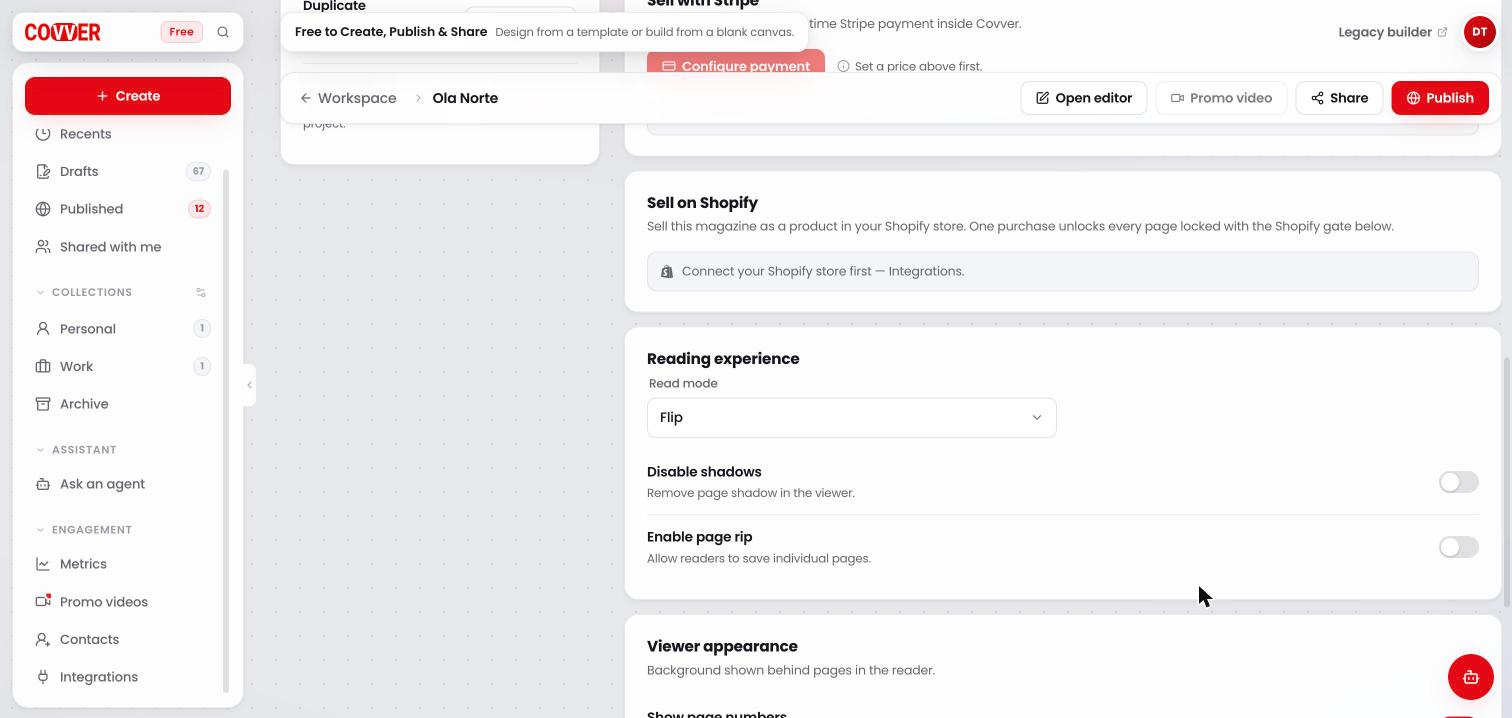
Sell on Shopify, Reading experience and the start of Viewer appearance
Viewer appearance
Controls what readers see around your pages.Laylo
If you added a Laylo API key in Integrations, a Laylo button appears in the header with two options. Both open Laylo in a new tab with the details filled in for you:Magazines from the previous builder
Magazines made with the earlier Covver builder show a Legacy tag and are read-only. Instead of Open editor, the header shows Convert to New Builder. It creates an editable copy in the current Builder. The original stays untouched, and some elements in the copy may need manual cleanup.Common questions
Do I need to publish again after changing these settings?
Do I need to publish again after changing these settings?
Price, Stripe and Shopify changes reach readers only after you publish again. Covver shows a Re-publish now notice when that is needed. Edits to the pages themselves also need a new publish. See Update a published magazine.
Why does my cover look out of date?
Why does my cover look out of date?
The cover is taken from your first page when you publish. Publish again to refresh it.
Related
Share your magazine
Links, QR codes, embeds and social posts.
Publish
Put your magazine online and update it.
Sell paid pages
Charge readers with Stripe.
Analytics
See how readers use your magazine.